
In this article, I’m going to show you how to make a Windows bootable USB drive on Kali Linux. So, let’s get started.
What is Ventoy?
Ventoy is a free and open-source utility used for writing image files such as .iso, .wim, .img, .vhd, and .efi onto storage media to create bootable USB flash drives.
Downloading Ventoy
- Access the Ventoy Website. Go to the “Download” tab on the Ventoy website.
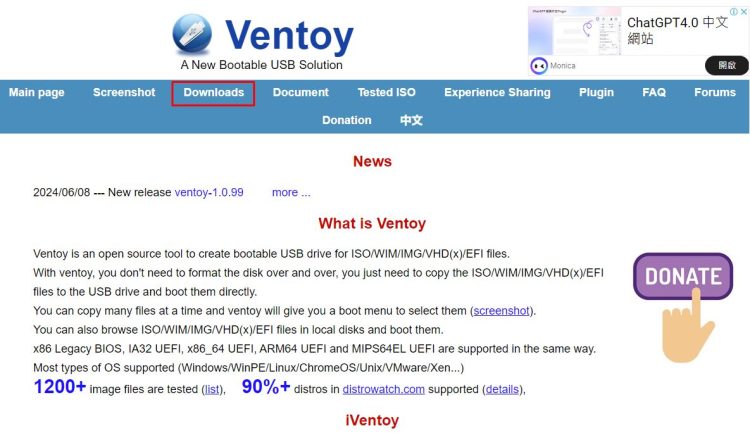
- Choose the Linux Version. Ventoy is available for both Windows and Linux. Click on the option for Linux.
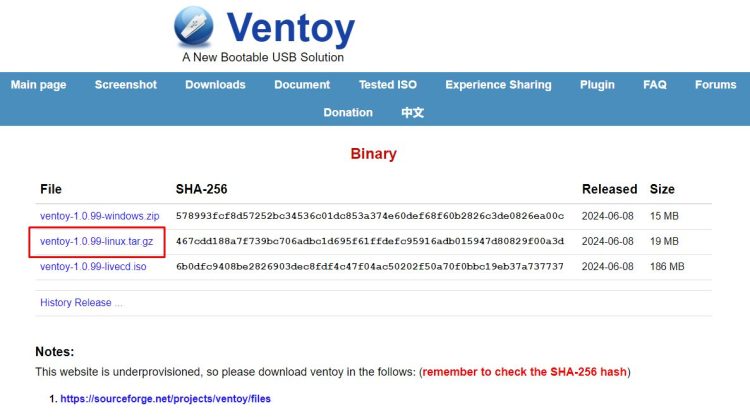
- Download the File.
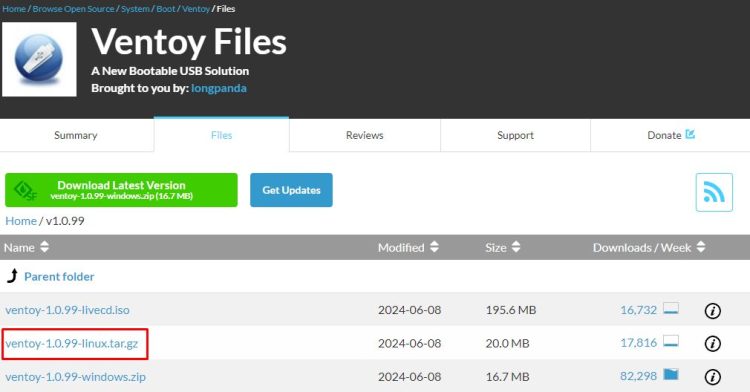
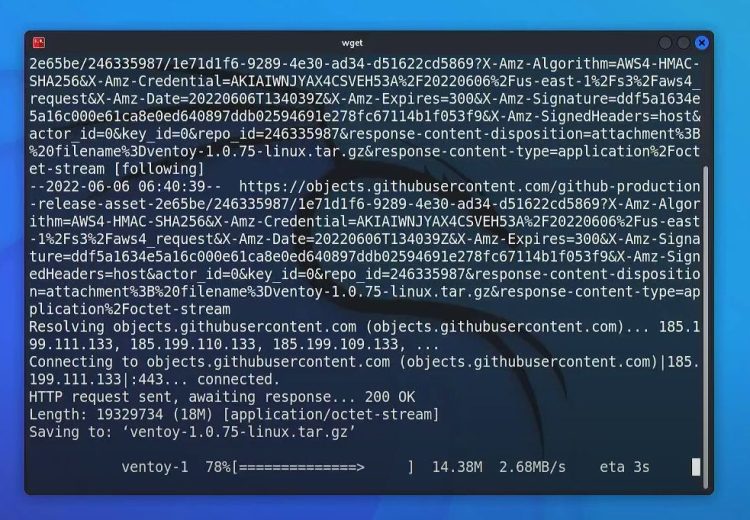
You can download the file directly or use the wget command. For this tutorial, we’ll use the wget command.
- Open Terminal. Open your terminal and type the
wgetcommand with the copied link.
- Verify Download. Use the
lscommand to check that the Ventoy tar file is downloaded.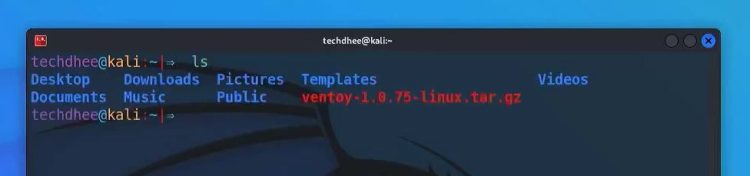
Extracting Ventoy
- Extract the Tar File. Use the
tarcommand to extract the tar file.
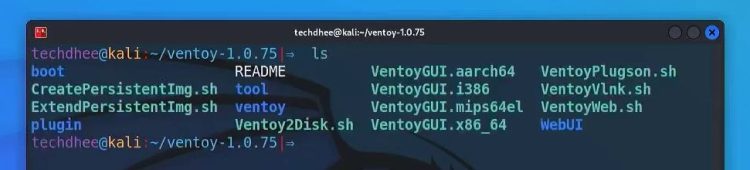
- Verify Extraction. Use the
lscommand again to see the extracted Ventoy directory. 
- Navigate to the Directory. Use the
cdcommand to move into the Ventoy directory.
Installing Ventoy
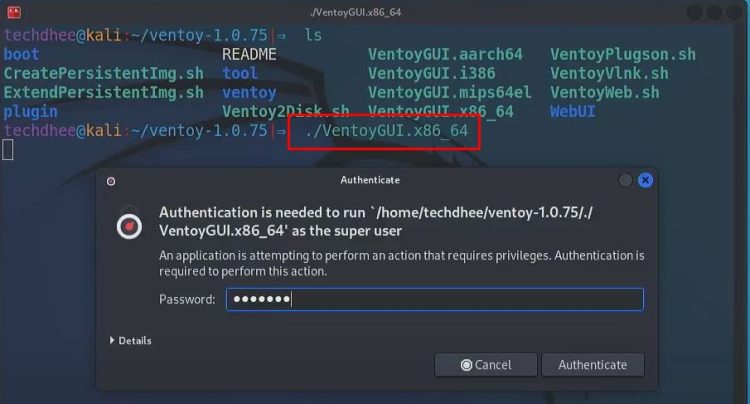
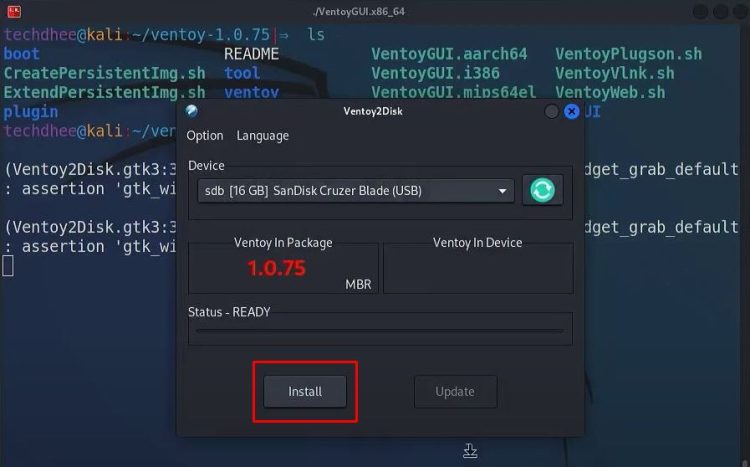
- Launch Ventoy GUI. Inside the Ventoy directory, run the
VentoyGUI.x86_64script to open the graphical interface. Enter your user password if prompted.
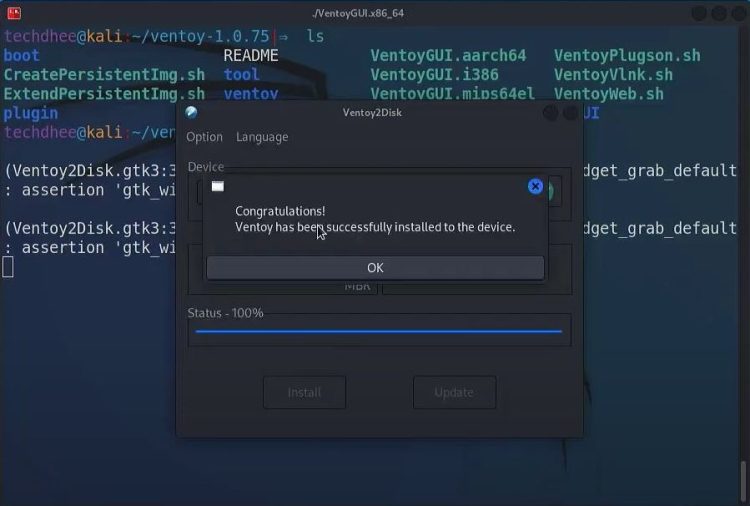
- Install Ventoy. Ensure your USB drive is connected to your Linux system. Click on “Install” and then “OK.” Wait for one or two minutes for the installation to complete.
- Confirmation. You will see a message saying, “Congratulations! Ventoy is installed on your device,” indicating that your USB drive is now bootable.
Adding ISO Images
- ISO Images. For this demonstration, I have Windows ISO image.
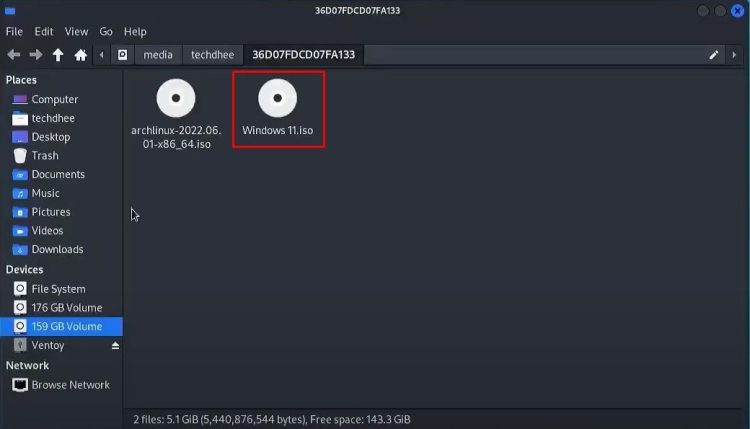
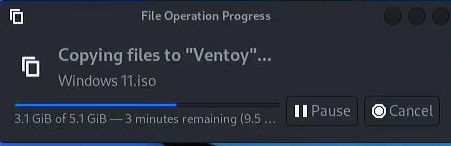
- Copy this image to the bootable USB drive.
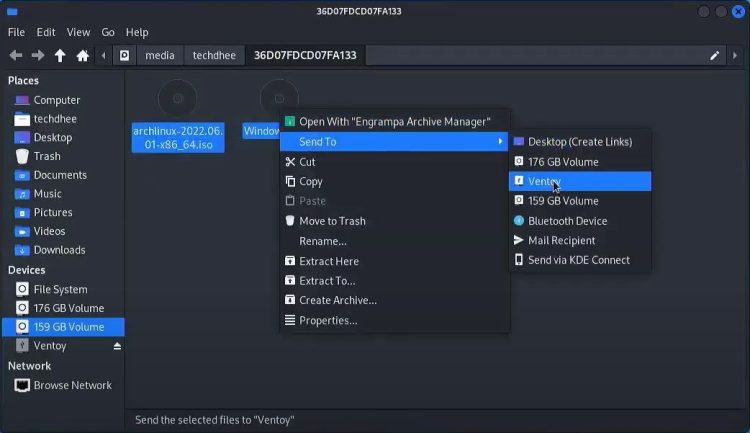
- The copying process may take some time.
Booting from the USB Drive
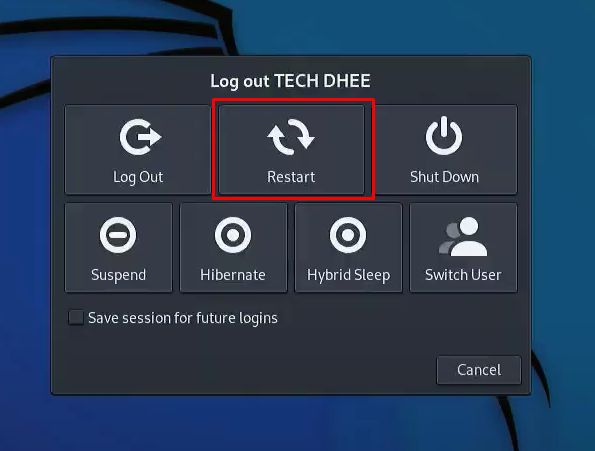
- Reboot Your System. Restart your system and enter the BIOS settings.
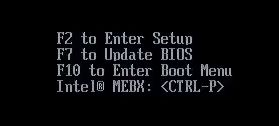
- Set USB Drive as First Boot Device. Set the USB drive as the first boot device, or press the function key to access the boot menu (F10 in my case).
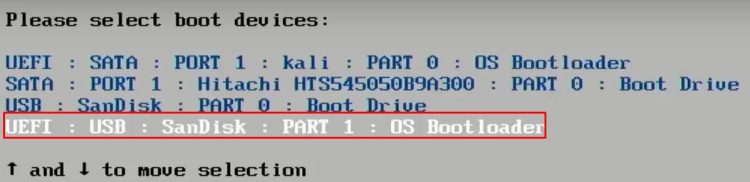
- Select UEFI Mode. Choose the UEFI mode if prompted.
- Ventoy Menu. You should see the Ventoy menu with both operating systems listed.
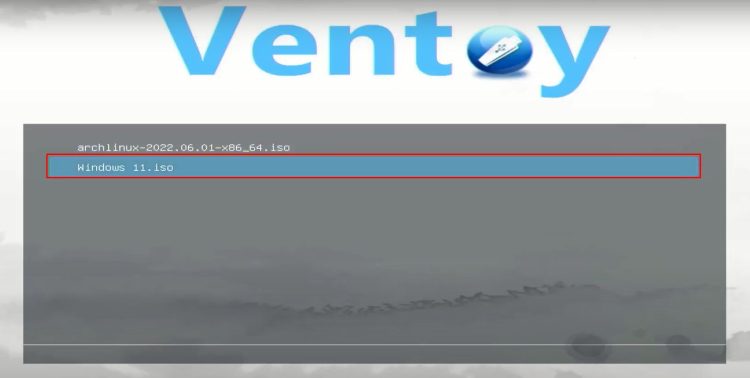
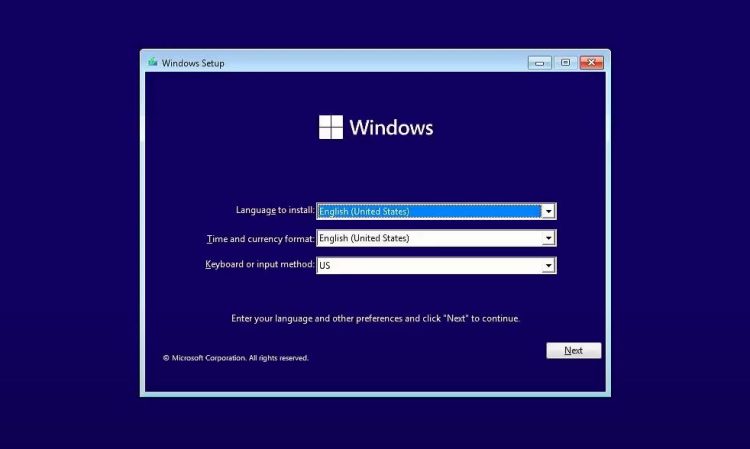
- Testing Boot. Select Windows 11 in UEFI mode. Verify that operating system works.
Conclusion
And that’s it! This is how to make a Windows 10/11 bootable USB drive on Linux. Thank you for reading this article! I hope you enjoyed this tutorial.
